Creating a poll in SurveyMonkey is one of the fastest ways to collect opinions, preferences, or quick feedback from a group of people.
A poll is usually much shorter than a traditional survey. Instead of asking 15 or 20 detailed questions, you may ask just one to five focused questions and use the responses to understand what people think.
For example, you could create a poll to ask:
- Which product feature should we launch next?
- What time works best for a team meeting?
- Which event location do people prefer?
- Which design looks better?
- How satisfied are customers with a recent update?
- Which topic should be covered in the next webinar?
SurveyMonkey can be used to create these kinds of polls quickly. You can add multiple-choice questions, allow respondents to select one or several answers, customize the design, share the poll through a link or other channels, and analyze the responses after people vote.
The basic process is:
Choose the poll question → Create the poll → Add answer choices → Customize it → Test it → Share it → Analyze the results
In this guide, you will learn how to create a poll in SurveyMonkey from beginning to end.
What Is a SurveyMonkey Poll?
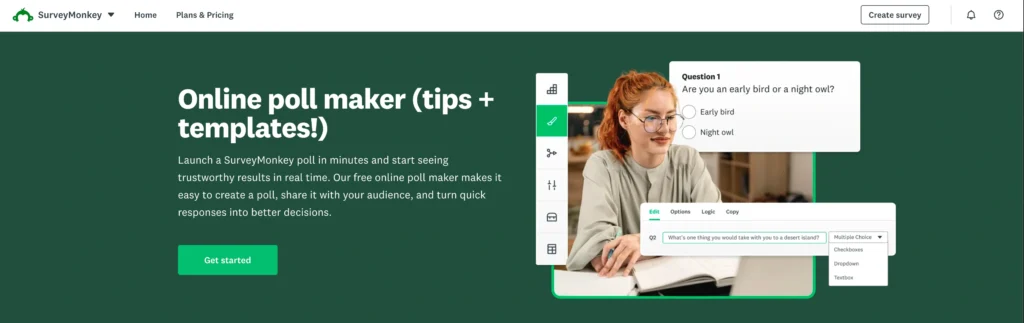
A poll is a short questionnaire designed to collect quick opinions or preferences.
The main difference between a poll and a full survey is usually the length and purpose.
A survey may contain many questions and collect detailed feedback.
A poll is generally designed to answer one specific question quickly.
For example:
Which day should we hold the team meeting?
- Monday
- Tuesday
- Wednesday
- Thursday
- Friday
That is a simple poll.
Another example could be:
Which new product feature would you like us to launch first?
- Dark mode
- Mobile app
- More integrations
- Advanced reporting
- Team collaboration
SurveyMonkey allows you to build polls using the same survey creation tools used for larger questionnaires.
Poll vs Survey: What Is the Difference?
Although the terms are sometimes used interchangeably, there are practical differences.
| Poll | Survey |
|---|---|
| Usually very short | Can be short or long |
| Often 1–5 questions | May contain many questions |
| Focuses on quick opinions | Can collect detailed research |
| Usually simple to answer | Can include complex logic |
| Fast to distribute | May require more planning |
| Results are often immediate | Analysis can be more detailed |
A poll works best when you need a quick answer.
A full survey is better when you need to understand the reasons behind that answer.
For example, if you only want to know which product customers prefer, create a poll.
If you want to understand why they prefer one product, what they like about it, how much they would pay, and which features matter most, create a longer survey.
Before Creating Your Poll: Define One Clear Goal
A good poll usually focuses on a single decision.
Before opening SurveyMonkey, ask:
What exactly do I want people to choose, rate, or tell me?
For example:
Bad goal:
I want to know what people think about our business.
Better goal:
I want to know which of our three new logo designs customers prefer.
The second goal can easily become a poll.
Examples of Good Poll Goals
You might create a poll to decide:
- Which product name people prefer
- Which day works best for an event
- What content topic people want next
- Which logo or design they like
- Which feature should be prioritized
- Whether employees support a proposed change
- Which destination a group wants to visit
- What time a meeting should be scheduled
The simpler the objective, the easier the poll will be to create and analyze.
Pro Tip: If your poll is trying to answer five unrelated business questions, it is probably becoming a survey. Keep polls focused.
Identify Who Should Answer the Poll
The quality of your results depends heavily on who participates.
Your audience might include:
- Customers
- Employees
- Students
- Website visitors
- Event attendees
- Social media followers
- Newsletter subscribers
- Product users
- Community members
Suppose you want to choose a feature for an existing software product.
Current users would probably provide more useful answers than random people who have never used the software.
Always match the audience to the decision.
How to Create a Poll in SurveyMonkey Step by Step
Once you know what you want to ask and who should answer, you can start building your poll.
Step 1: Sign In to SurveyMonkey
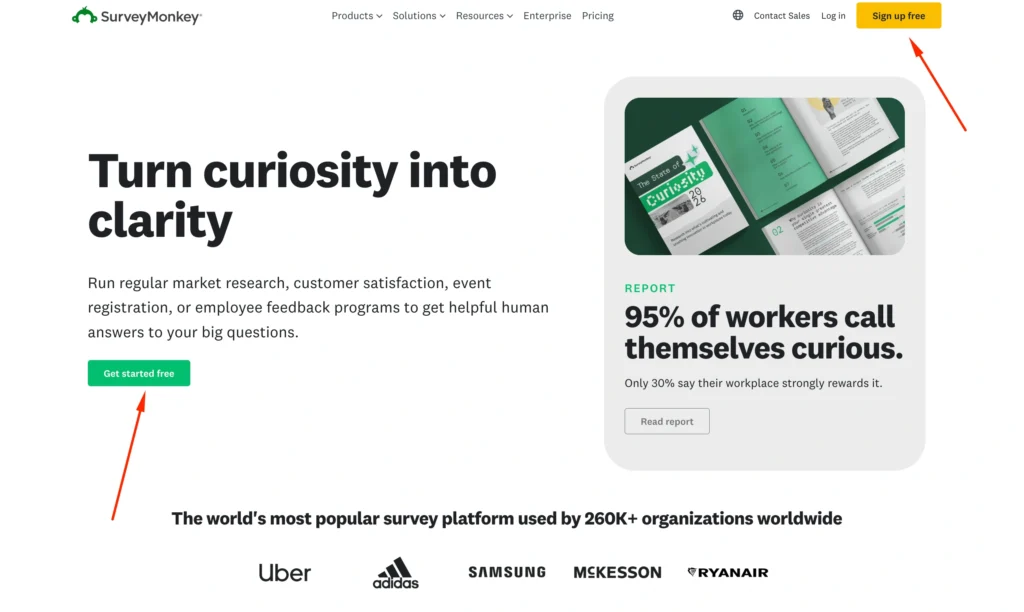
Start by signing into your SurveyMonkey account.
If you do not already have an account, create one first.
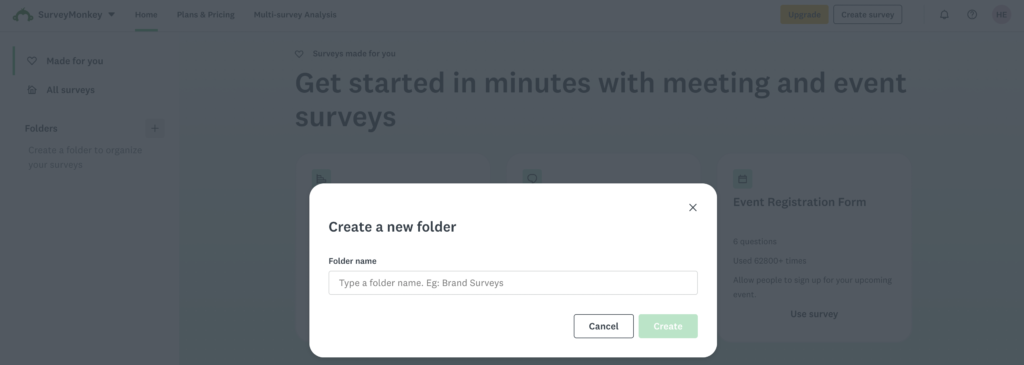
After signing in, go to your survey dashboard.
This is where you can:
- Create new surveys or polls
- Access existing projects
- Edit questions
- Collect responses
- Review results
SurveyMonkey typically treats polls as short surveys, so you will generally use the normal survey creation workflow.
The main process is:
Create → Design → Collect → Analyze
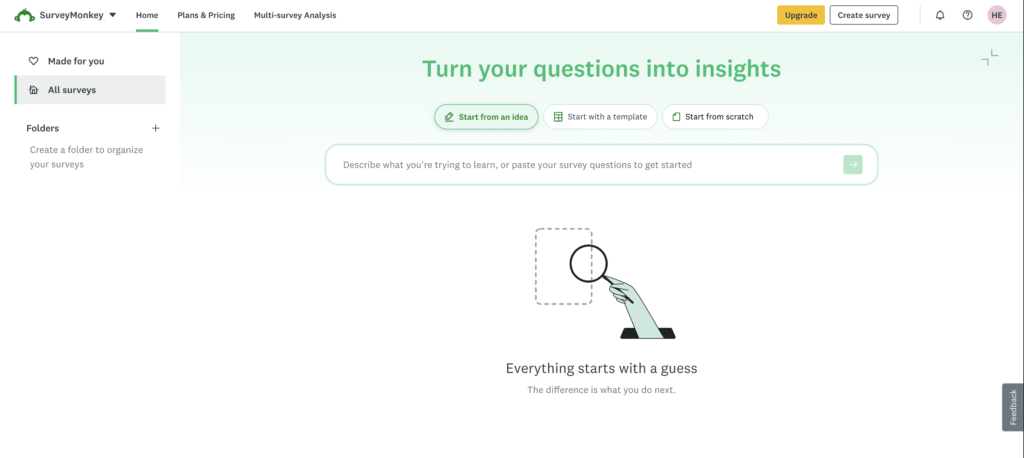
Step 2: Create a New Survey
Choose the option to create a new survey.
You may have different starting options depending on your account and the current SurveyMonkey interface.
The two most useful options are:
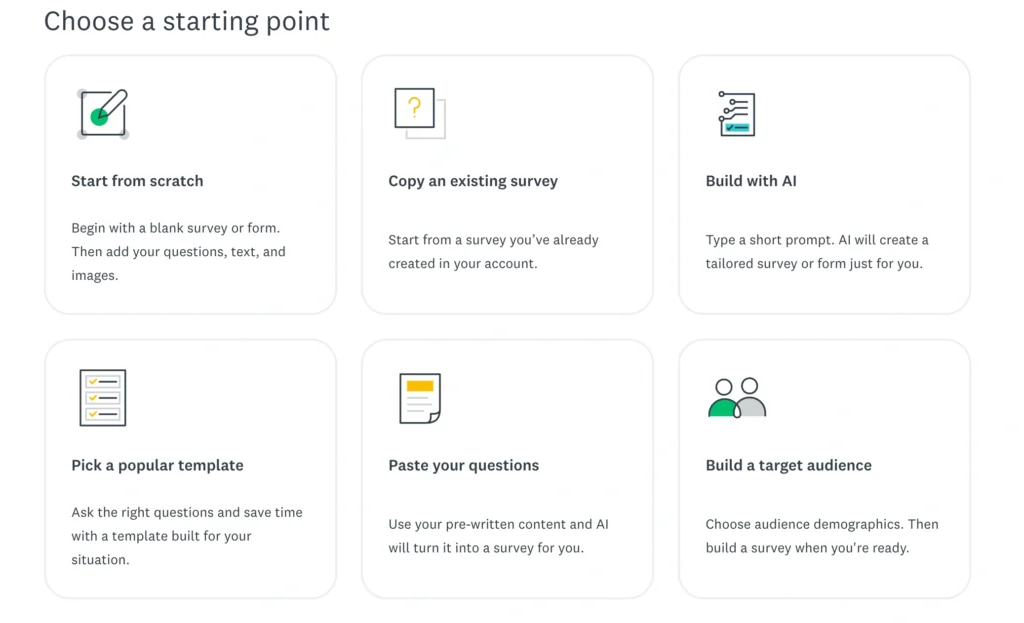
Start From Scratch
This is usually the best approach for a simple poll.
You create the question yourself and add the answer choices you want.
For example:
Which topic should our next webinar cover?
- SEO
- Google Ads
- Email marketing
- Affiliate marketing
- Social media
Starting from scratch is ideal when your poll is very specific.
Use a Template
You may also be able to begin with a template.
Templates can be useful when your poll relates to common topics such as:
- Customer feedback
- Employee feedback
- Events
- Education
- Market research
However, if you only need one or two questions, starting from scratch is often faster.
Pro Tip: For very simple polls, avoid overcomplicating the setup. One clear question with well-written answer choices can be more useful than a five-question poll.
Step 3: Give Your Poll a Clear Name
Choose a descriptive internal title.
Instead of:
Poll 1
Use:
New Product Feature Poll
or:
Team Meeting Day Poll
or:
Customer Logo Preference Poll
A clear name becomes useful when you have many projects inside your SurveyMonkey account.
You may also create a respondent-facing title such as:
Help Us Choose Our Next Feature
or:
Vote for Your Preferred Meeting Time
Keep the title simple and relevant.
Step 4: Write a Short Poll Introduction
A poll usually does not need a long introduction.
One or two sentences are enough.
For example:
We are planning our next product update and would love your opinion. Please vote for the feature you would most like us to add.
Another example:
Help us choose the best date for our upcoming workshop. Select the day that works best for you.
The introduction should explain why the person is being asked to vote.
Keep It Short
Do not write five paragraphs before asking one poll question.
Polls work because they are quick.
The faster respondents understand the task, the more likely they are to complete it.
Step 5: Add Your Poll Question
Now add the main question.
For most polls, a multiple-choice question is the best format.
For example:
Which new feature would you like us to launch next?
- Mobile app
- Dark mode
- Additional integrations
- Advanced analytics
- Team collaboration
Each answer should be easy to understand.
Keep the Question Neutral
Avoid wording that influences people.
Bad:
Which of our amazing new features do you think is best?
Better:
Which feature would you like us to launch next?
Neutral wording produces more reliable results.
Step 6: Decide Whether People Can Choose One or Multiple Answers
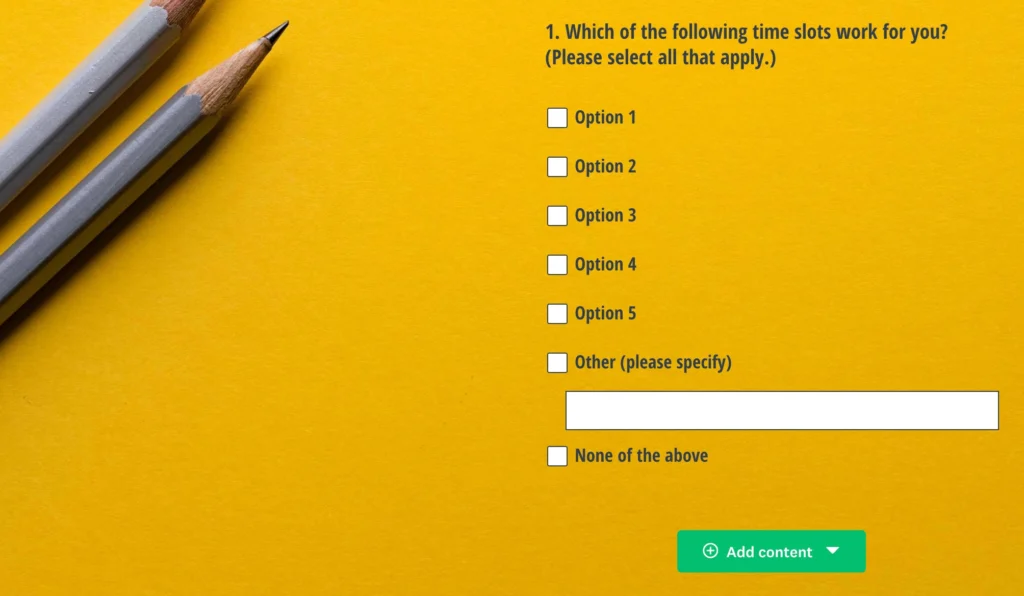
This is one of the most important poll settings.
Sometimes respondents should select only one option.
Other times they should be allowed to choose several.
Single-Choice Poll
Use one answer when you need one clear preference.
Example:
Which logo do you prefer?
- Logo A
- Logo B
- Logo C
Each respondent should choose one.
Multiple-Choice Poll
Allow multiple selections when several answers can legitimately apply.
Example:
Which topics would you like us to cover next month? Select all that apply.
- SEO
- Google Ads
- Email marketing
- Content marketing
- Affiliate marketing
A respondent may be interested in several topics.
Which Should You Use?
| Goal | Selection Type |
|---|---|
| Find one winner | Single choice |
| Identify multiple interests | Multiple selections |
| Pick one date | Single choice |
| Choose several available dates | Multiple selections |
| Select favorite design | Single choice |
| Select useful features | Multiple selections |
Pro Tip: If you want to know people’s top priority, require one choice. If you allow them to select everything they like, you may lose the ability to identify a clear winner.
Step 7: Write Strong Answer Choices
Your answer options matter as much as the question.
Make sure choices are:
- Clear
- Distinct
- Relevant
- Easy to compare
- Free from unnecessary overlap
For example:
Bad answer choices for:
How often do you exercise?
- Often
- Quite often
- Sometimes
- Not very often
These options are vague.
Better:
- Every day
- 4–6 days per week
- 2–3 days per week
- Once per week
- Less than once per week
- Never
Specific answer choices improve accuracy.
Step 8: Add an “Other” Option When Needed
Sometimes your predefined choices may not cover every possibility.
Suppose you ask:
Which social media platform do you use most?
- YouTube
- TikTok
Some respondents may mainly use another platform.
Adding:
Other
can make the poll more inclusive.
However, you do not need an “Other” option for every question.
For example:
Which of these three proposed logos do you prefer?
- Logo A
- Logo B
- Logo C
Here, “Other” may not be necessary because the poll specifically asks respondents to choose between three options.
Step 9: Add More Questions Only If Necessary
A poll can contain more than one question.
However, every additional question creates more work for respondents.
Suppose your main poll asks:
Which feature should we develop next?
You might add a second question:
How important is this feature to you?
- Not important
- Slightly important
- Moderately important
- Very important
- Extremely important
You could also ask:
Why did you choose this feature?
using an optional open-ended question.
This gives you both the vote and some context.
Keep Polls Short
For most simple polls, one to five questions is enough.
If you start adding:
- Demographic sections
- Long rating scales
- Multiple open-ended questions
- Complex matrices
- Detailed branching
you may be building a full survey rather than a poll.
Step 10: Consider Adding a Rating Question
Not every poll needs to ask people to choose between options.
You can also create a quick rating poll.
For example:
How satisfied are you with our new website?
1 – Very dissatisfied
2 – Dissatisfied
3 – Neutral
4 – Satisfied
5 – Very satisfied
This is useful for quickly measuring sentiment.
Other Rating Poll Examples
How useful was today’s webinar?
1 – Not useful
2 – Slightly useful
3 – Moderately useful
4 – Very useful
5 – Extremely useful
Or:
How likely are you to attend our next event?
- Very unlikely
- Unlikely
- Not sure
- Likely
- Very likely
Step 11: Use Ranking Questions When You Need Priorities
Sometimes simply asking respondents to choose one option is not enough.
Suppose you want to know how customers prioritize five possible features.
Rather than asking for one favorite, a ranking-style question can help you understand the order of preference.
For example:
Rank these features from most important to least important:
- Mobile app
- Advanced analytics
- More integrations
- Faster support
- Team collaboration
This can provide more information than a simple winner-takes-all vote.
However, ranking requires more effort from respondents.
Use it only when priority order genuinely matters.
Step 12: Avoid Leading Poll Questions
A poll should measure real opinion, not push people toward your preferred answer.
Bad:
Don’t you think we should extend our opening hours?
- Yes
- No
This wording encourages agreement.
Better:
Should we extend our opening hours?
- Yes
- No
- Not sure
Another bad example:
Which of our excellent new designs do you prefer?
Better:
Which new design do you prefer?
Keep the language neutral.
Step 13: Avoid Overlapping Answers
Answer choices should be clearly separated.
Consider:
How old are you?
Bad choices:
- 18–25
- 25–35
- 35–45
Someone who is 25 could choose either of the first two categories.
Better:
- 18–24
- 25–34
- 35–44
- 45–54
- 55+
Every respondent should know exactly where they belong.
Step 14: Keep the Poll Mobile-Friendly
Many people will vote from their phones.
Your poll should be easy to complete on a small screen.
Use:
- Short questions
- Short answer choices
- Simple layouts
- Limited text
- Few questions
Avoid large matrix tables or long introductions.
A good poll should often be completable within seconds.
Pro Tip: Open the poll on your own phone before sharing it. If you have to zoom, scroll excessively, or reread answer choices, simplify it.
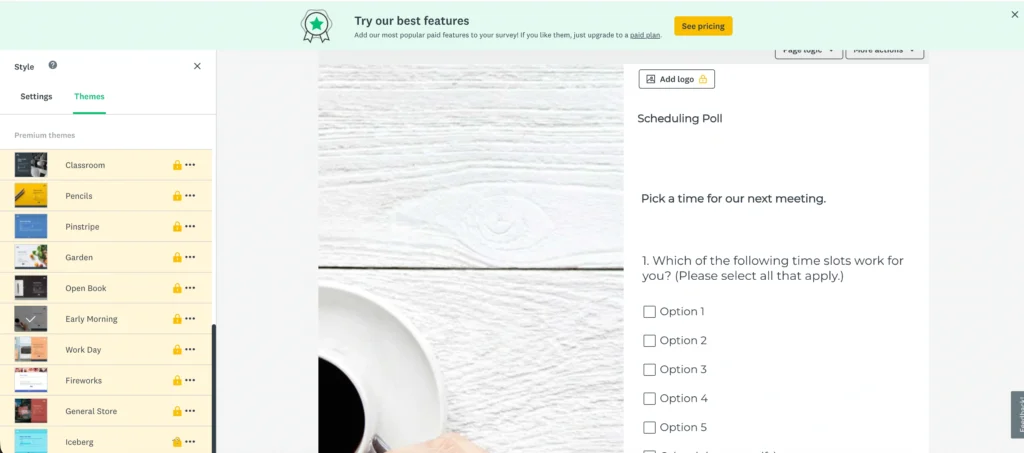
Step 15: Customize the Poll Design
SurveyMonkey provides design and theme options, although available features can vary by subscription.
You may be able to customize:
- Colors
- Fonts
- Background
- Theme
- Logo
- Branding
For a simple poll, keep the design clean.
The poll question should be the main focus.
Add Branding When Appropriate
If you are polling customers, employees, or members of a community, branding can help establish trust.
For example, you could add your company logo.
However, avoid overwhelming respondents with decorative elements.
A poll should feel quick and simple.
Step 16: Create a Thank-You Message
After someone votes, give them a clear completion message.
For example:
Thanks for voting. Your feedback will help us decide which feature to develop next.
Or:
Thank you for participating. We will announce the winning option next week.
A thank-you message confirms that the response was successfully submitted.
You can also explain what happens next when relevant.
Step 17: Preview the Poll
Before sharing the poll, preview it.
Complete it yourself.
Check:
- Question wording
- Answer options
- Spelling
- Selection settings
- Required questions
- Mobile layout
- Thank-you message
If the poll contains more than one question, make sure the order feels natural.
Test Different Answers
If you are using any logic or different paths, test each possible route.
Even simple polls should be tested before public distribution.
Step 18: Share Your SurveyMonkey Poll
After testing, move to the response collection stage.
SurveyMonkey provides different ways to collect answers depending on your account and setup.
Common distribution methods include:
- Web link
- Social media
- Website
- QR code
Share the Poll With a Web Link
A web link is one of the easiest options.
Generate the poll link and share it wherever your audience is active.
For example:
- Slack
- Teams
- Website
- Newsletter
- Community group
A link is especially useful when you want full control over how the poll invitation is written.
Share the Poll by Email
Email works well when you already know who should vote.
For example:
We are choosing the topic for our next webinar. Please take 30 seconds to vote for your preferred topic.
Then provide access to the poll.
Keep the message short.
A poll invitation should feel easy to act on.
Share the Poll on Social Media
Social media is useful when your audience includes followers or community members.
You might ask:
Which topic should we publish next? Vote in our quick poll.
The advantage is reach.
The disadvantage is that a public poll can attract people outside your intended target audience.
Keep this in mind if accuracy matters.
Add the Poll to Your Website
Website polls can be useful for collecting quick visitor feedback.
For example:
Did this article answer your question?
- Yes
- Partly
- No
Or:
Which product category would you like us to add next?
Website polls should usually be extremely short.
Visitors came to your website for another reason, so do not interrupt them with a long questionnaire.
Use a QR Code for Offline Voting
QR codes can help you collect responses from people in physical locations.
You could place the poll QR code on:
- Posters
- Conference materials
- Restaurant tables
- Store counters
- Receipts
- Flyers
- Product packaging
- Presentation slides
Respondents scan the code and open the poll on their phone.
Always test the QR code before printing it.
Step 19: Decide Whether the Poll Should Be Anonymous
Whether you need identifiable responses depends on your goal.
For example, an employee opinion poll may receive more honest feedback if respondents believe their answers are private.
A team scheduling poll may require you to know who selected which dates.
Before launching, decide whether identifying information is necessary.
Do not collect personal information simply because it is available.
Collect only what you need.
Step 20: Launch the Poll
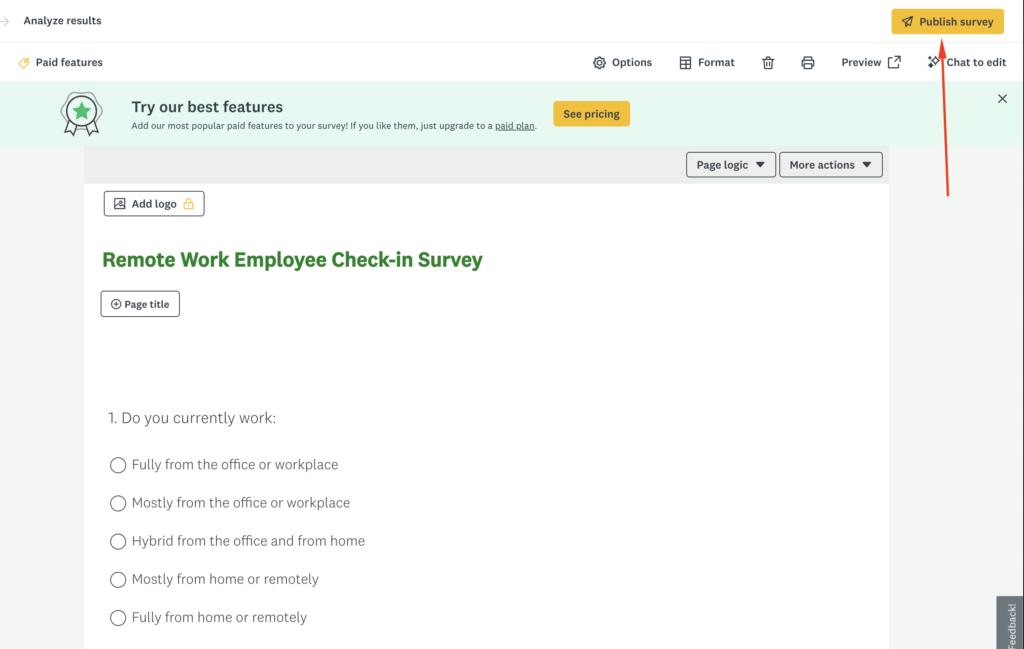
Once you are satisfied with the design and distribution setup, publish and share the poll.
For important polls, consider sending it to a small test group first.
Even five test responses can reveal problems.
Check whether:
- People understand the question
- One answer choice is confusing
- The poll works on mobile
- Responses are recorded correctly
Then distribute it to the full audience.
Step 21: Monitor Responses
Once people start voting, check the results.
SurveyMonkey’s analysis area lets you review responses and available charts or summaries.
Look at:
- Total responses
- Number of votes for each option
- Percentage for each option
- Completion patterns
- Written comments, if included
For a simple single-question poll, the winner may become obvious quickly.
For example:
| Option | Votes | Percentage |
|---|---|---|
| Mobile app | 183 | 46% |
| Advanced reporting | 102 | 26% |
| More integrations | 71 | 18% |
| Dark mode | 40 | 10% |
In this example, the mobile app is clearly the preferred option.
Step 22: Use Filters When Needed
If you collected additional information, filters can help you compare groups.
Suppose you asked respondents about their customer type.
You might discover:
Overall winner: Mobile app
But when filtered:
New customers prefer: Mobile app
Long-term customers prefer: Advanced reporting
That gives you more useful information than looking at the overall total alone.
Filters are particularly valuable when different groups may have different preferences.
Step 23: Analyze Open-Ended Comments
If your poll includes an optional comment question, read those answers.
Suppose the winning option is:
Mobile app
Comments might reveal:
“I want to check reports while traveling.”
“Desktop access is difficult when I’m away from the office.”
“Push notifications would be useful.”
Now you know not only what people want, but why they want it.
That context can help you make a better decision.
Step 24: Export or Share the Poll Results
Depending on your SurveyMonkey plan, you may have options to export or share poll results.
Different formats can be useful for different purposes.
| Format | Best For |
|---|---|
| Sharing a simple report | |
| Spreadsheet | Deeper analysis |
| Charts | Presentations |
| Raw responses | Detailed research |
For a simple poll, you may only need the final percentages.
For a business decision, exporting the data can help you compare groups or perform additional analysis.
Best Practices for Creating Better SurveyMonkey Polls
A poll should feel effortless to respondents.
Ask One Clear Question
The main question should be immediately understandable.
Avoid complicated wording.
Keep the Poll Short
One to five questions is usually enough.
Make Answer Choices Clear
Respondents should not have to guess what an option means.
Avoid Bias
Do not suggest which answer people should choose.
Use One Choice When You Need a Winner
If your goal is to identify a clear preference, require respondents to choose one option.
Allow Multiple Answers Only When Necessary
Multiple selections are useful for identifying interests, but they may not produce a clear first choice.
Make It Mobile-Friendly
Assume many people will vote on their phones.
Explain Why You Are Asking
A short sentence explaining the purpose can improve participation.
Test Before Sharing
Always vote in your own poll before distributing it.
Set a Deadline When Necessary
If the poll is being used to make a decision, tell respondents when voting closes.
For example:
Please vote by Friday at 5 PM.
Pro Tip: If you need a decision, tell respondents when the results will be used. A clear deadline creates more urgency than leaving the poll open indefinitely.
Common Mistakes to Avoid
Making the Poll Too Long
A 20-question poll is usually a survey.
Keep it focused.
Asking Several Questions at Once
Bad:
Which product do you prefer and how much would you pay for it?
Split these into separate questions.
Using Biased Wording
Do not push people toward the answer you want.
Giving Too Many Similar Choices
If two options mean almost the same thing, respondents may become confused.
Forgetting “Not Sure”
In some situations, respondents may genuinely have no preference.
Providing “Not sure” can be better than forcing an inaccurate vote.
Allowing Multiple Choices When You Need One Winner
If everybody selects three options, you may not learn which option is the true priority.
Ignoring the Target Audience
A large number of responses from the wrong people can be less useful than a smaller number from the correct audience.
Not Testing the Poll
A typo in an answer choice or incorrect setting can affect the entire result.
Changing Options Midway Through Voting
Avoid significantly changing answer choices after many people have already responded.
Earlier and later respondents would effectively be answering different polls.
Examples of SurveyMonkey Poll Questions
Here are a few simple examples you can adapt.
Product Poll
Which feature should we develop next?
- Mobile app
- Advanced reporting
- Additional integrations
- Dark mode
Event Poll
Which date works best for our next event?
- September 10
- September 12
- September 17
- September 19
Content Poll
Which topic would you like us to cover next?
- SEO
- Google Ads
- Affiliate marketing
- Social media
- Email marketing
Employee Poll
Which meeting time works best for you?
- 9:00 AM
- 11:00 AM
- 2:00 PM
- 4:00 PM
Customer Feedback Poll
How satisfied are you with your recent purchase?
- Very dissatisfied
- Dissatisfied
- Neutral
- Satisfied
- Very satisfied
Website Poll
Did you find what you were looking for today?
- Yes
- Partly
- No
FAQs About Creating a Poll in SurveyMonkey
1. How do I create a poll in SurveyMonkey?
Sign into SurveyMonkey, create a new survey, add your poll question and answer choices, configure whether respondents can choose one or multiple options, preview the poll, create a response collector, and share it with your audience.
2. Can I create a SurveyMonkey poll for free?
SurveyMonkey offers a free account option, but limitations apply. Available questions, responses, exports, customization, and other features can depend on your current plan.
3. How many questions should a SurveyMonkey poll have?
Most polls work best with one to five questions. If you need detailed information across many topics, consider creating a full survey instead.
4. Can people choose more than one answer?
Yes, you can create questions that allow multiple selections where appropriate. If you need one clear winner, use a single-choice question instead.
5. Can I make a SurveyMonkey poll anonymous?
Privacy and identification depend on how you configure and distribute the poll. Decide whether you actually need identifying information before collecting responses.
6. Can I share a SurveyMonkey poll through a link?
Yes. A web link is one of the easiest ways to distribute a poll through email, messaging apps, websites, newsletters, or other channels.
7. Can I share a SurveyMonkey poll on social media?
Yes. A poll link can be distributed through social platforms, although you should consider whether a public audience matches your target respondents.
8. Can I use a QR code for a SurveyMonkey poll?
QR-code-based distribution can be useful for supported SurveyMonkey collection workflows, particularly for events, stores, restaurants, presentations, and other offline settings.
9. Can I see poll results in real time?
As responses arrive, you can review collected results in SurveyMonkey’s analysis area. The exact reporting options available depend on your account and plan.
10. Can I export poll results?
Export capabilities vary by SurveyMonkey plan. Where available, you may be able to export results into formats such as PDF or spreadsheet-compatible files for additional reporting and analysis.
Final Thoughts
Creating a poll in SurveyMonkey is straightforward, but a useful poll starts with a clear decision.
First decide what you need to know.
Then ask one focused question and provide clear answer choices.
If you need one winner, allow respondents to select one answer. If you are trying to understand broader interests, allow multiple selections where appropriate.
Keep the poll short, use neutral wording, and make sure the answer choices do not overlap.
Once the question is ready, customize the design if needed, create a simple thank-you message, and test the poll on both desktop and mobile.
Then choose the distribution method that matches your audience.
A web link works for general sharing. Email is useful for known respondents. Social media can help you reach a larger audience. Website polls can collect quick visitor feedback, while QR codes are helpful for offline voting.
After responses arrive, look beyond the winning option when possible. Compare percentages, filter different respondent groups, and read any written comments.
The best polls do not simply collect votes.
They make a decision easier.
Before publishing your next SurveyMonkey poll, ask yourself:
“What will I do differently once I know which option wins?”
If you have a clear answer, your poll probably has a clear purpose.