Creating a questionnaire in SurveyMonkey is easy. The real challenge is asking the right questions without making the questionnaire too long or confusing.
SurveyMonkey lets you create multiple-choice questions, rating scales, matrix questions, open-ended questions, and questionnaires with conditional logic. You can then share them through email, links, websites, social media, or QR codes and analyze the responses from your dashboard.
Here is how to create a questionnaire in SurveyMonkey from start to finish.
What Is a Questionnaire in SurveyMonkey?
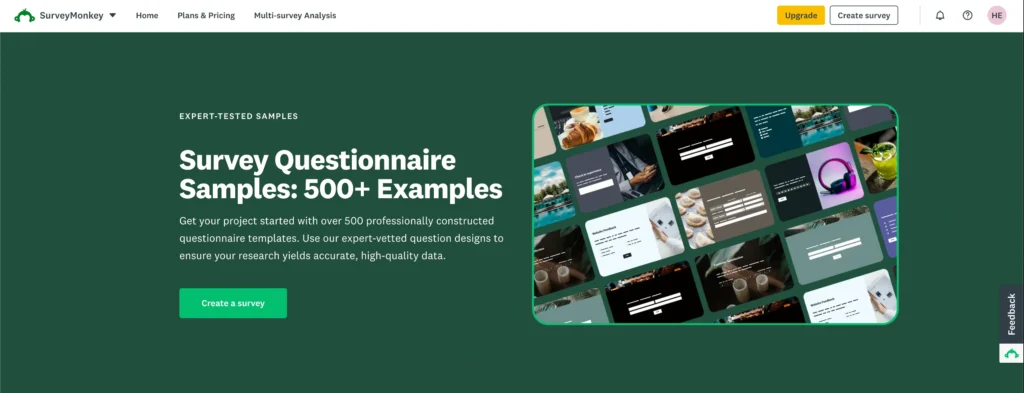
A questionnaire is a collection of questions designed to gather information from a specific audience.
You can use SurveyMonkey questionnaires for:
- Customer satisfaction
- Employee feedback
- Market research
- Product feedback
- Event feedback
- Student research
- Website feedback
- Customer experience research
For example, an online store might ask customers about product quality, delivery, pricing, and their overall shopping experience.
SurveyMonkey provides the tools needed to create the questions, collect answers, and analyze the results.
Before Creating Your Questionnaire
Do not start adding questions immediately. Spend a few minutes deciding what you actually want to learn.
Define Your Goal
Ask yourself:
What information do I need from respondents?
Instead of using a broad goal such as:
“I want customer feedback.”
Make it more specific:
“I want to understand why customers are not renewing their subscriptions.”
This helps you decide which questions are necessary.
Every question should contribute to your main objective. If you do not know what you will do with the answer, you probably do not need the question.
Identify Your Audience

Next, decide who should answer your questionnaire.
Your audience could include:
- Existing customers
- Former customers
- Employees
- Students
- Website visitors
- Event attendees
- Product users
Be specific.
For example, instead of targeting all customers, you might target:
Customers who purchased during the last six months.
A clearly defined audience usually produces more useful results.
How to Create a Questionnaire in SurveyMonkey
Once you know your objective and audience, you can start building your questionnaire.
Step 1: Create a New Survey
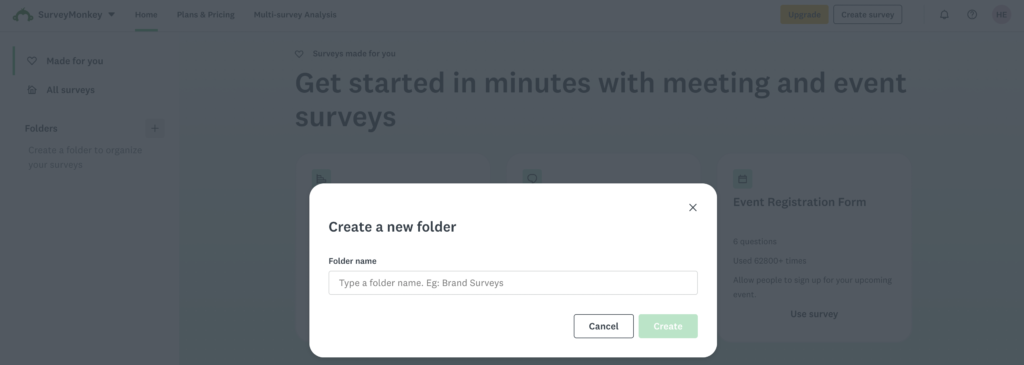
Sign in to your SurveyMonkey account and choose the option to create a new survey.
You will generally have two main options:
Start From Scratch
Choose this when you want complete control over your questions, answer choices, structure, logic, and design.
Use a Template
SurveyMonkey provides templates for common purposes such as:
- Customer satisfaction
- Employee engagement
- Market research
- Events
- Education
- Product feedback
Templates are useful for beginners and anyone who needs to create a questionnaire quickly.
| Situation | Recommended Option |
|---|---|
| Beginner | Template |
| Quick customer feedback | Template |
| Specialized research | Start from scratch |
| Custom business survey | Start from scratch |
| Need maximum control | Start from scratch |
Even when using a template, review every question and remove anything that does not support your goal.
Step 2: Add a Title and Introduction
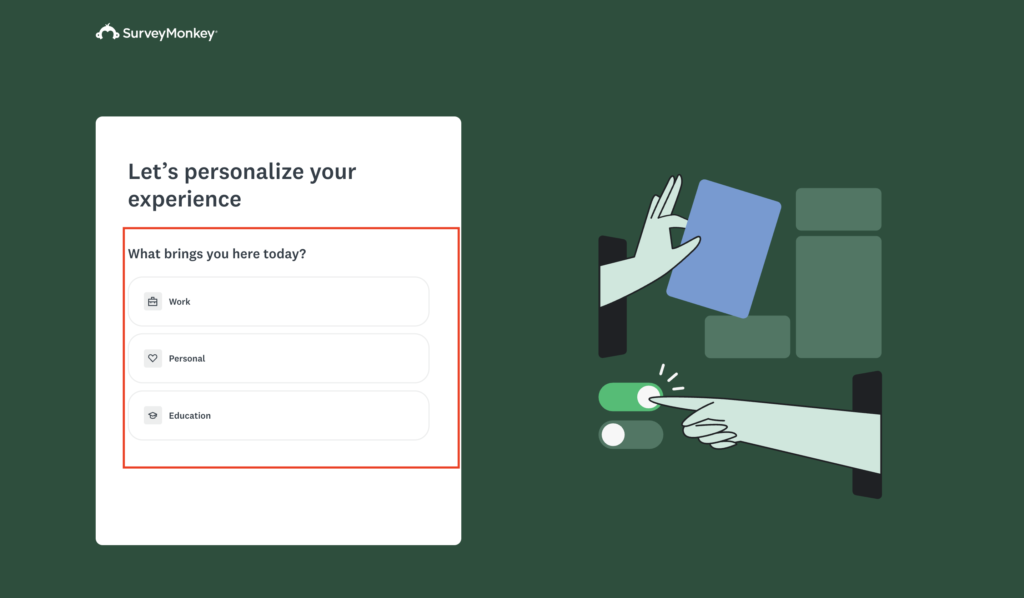
Give your questionnaire a clear title.
For example:
Customer Satisfaction Questionnaire
Employee Feedback Questionnaire
Website Experience Questionnaire
Then write a short introduction explaining why you are collecting responses.
For example:
Thank you for completing our customer feedback questionnaire. It takes approximately four minutes and will help us improve our products and customer experience.
Keep your introduction short and clear.
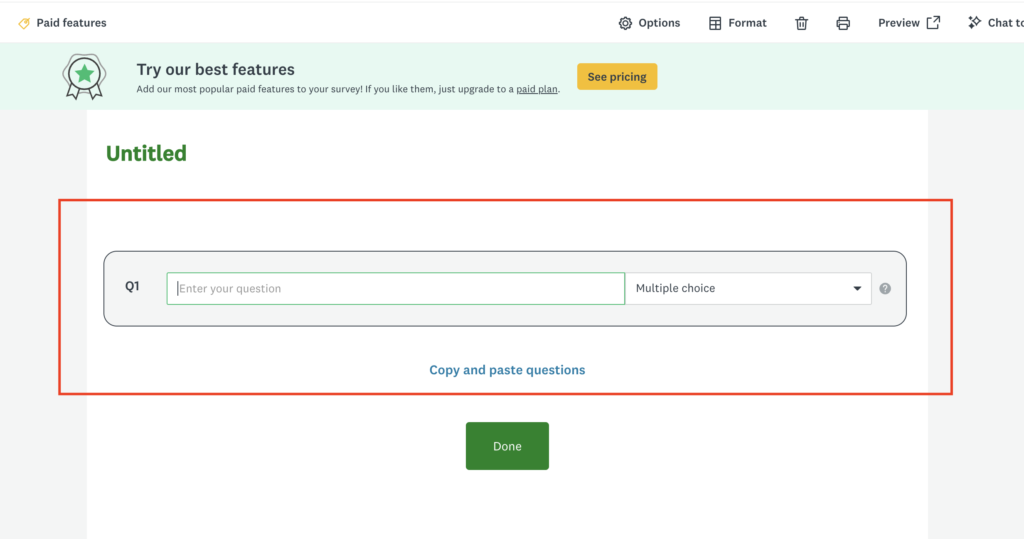
Step 3: Add Multiple-Choice Questions
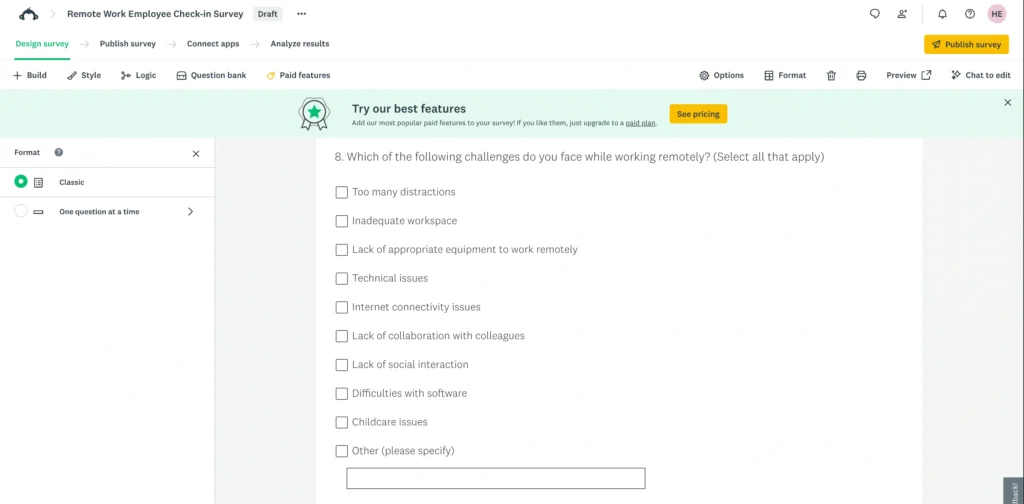
Multiple-choice questions are ideal when respondents need to select one answer.
For example:
How often do you purchase from us?
- Weekly
- Monthly
- Every few months
- Once or twice a year
- This was my first purchase
Multiple-choice questions are easy for respondents and produce structured data that is simple to analyze.
Add an Other option when your predefined answers may not cover everyone.
Step 4: Use Checkbox Questions
Checkbox questions allow respondents to select multiple answers.
For example:
Which social media platforms do you regularly use?
- YouTube
- TikTok
- X
Use checkboxes only when more than one answer can apply.
If you need the respondent’s single most important choice, use multiple choice instead.
Step 5: Add Rating Scale Questions
Rating scales are useful for measuring satisfaction, quality, ease of use, value, or likelihood.
For example:
How would you rate our customer service?
1 – Very Poor
2 – Poor
3 – Average
4 – Good
5 – Excellent
Keep the direction of your scales consistent throughout the questionnaire.
If 1 means “Very Poor” in one question, avoid making 1 mean “Excellent” somewhere else.
Step 6: Use Likert Scale Questions
Likert scales measure agreement with a statement.
For example:
The product is easy to use.
- Strongly disagree
- Disagree
- Neither agree nor disagree
- Agree
- Strongly agree
These questions work well for measuring:
- Customer satisfaction
- Employee engagement
- Brand perception
- Product usability
- Service quality
Keep your scale balanced so respondents have equal positive and negative choices.
Step 7: Add Matrix Questions
Matrix questions let you rate several related items using the same scale.
For example:
| Area | Poor | Average | Good | Excellent |
|---|---|---|---|---|
| Product quality | ○ | ○ | ○ | ○ |
| Customer service | ○ | ○ | ○ | ○ |
| Pricing | ○ | ○ | ○ | ○ |
| Delivery | ○ | ○ | ○ | ○ |
Matrix questions can make questionnaires shorter.
However, avoid creating very large matrices. They can be difficult to complete on mobile devices.
Step 8: Add Open-Ended Questions
Open-ended questions allow respondents to provide answers in their own words.
For example:
What is one thing we could do to improve our service?
These questions are useful for collecting suggestions, complaints, explanations, and detailed feedback.
Do not use too many open-ended questions because typing requires more effort.
One or two carefully selected open questions are often enough.
Step 9: Write Clear and Neutral Questions
Your questions should be simple and unbiased.
Avoid asking two things at once.
Bad:
How satisfied are you with our product and customer service?
Someone might like the product but dislike the customer service.
Create two separate questions instead.
Also avoid leading questions.
Bad:
How helpful was our excellent customer support team?
Better:
How would you rate your experience with our customer support team?
Keep the language simple so respondents immediately understand what you are asking.
Step 10: Organize Questions Properly
Arrange questions in a logical order.
A customer questionnaire could follow this structure:
General Experience
Ask about overall satisfaction and purchase frequency.
Product Experience
Ask about product quality, features, and ease of use.
Customer Service
Ask about support quality and issue resolution.
Future Intentions
Ask whether customers plan to purchase again or recommend the company.
Final Feedback
Finish with open-ended comments or demographic questions.
Start with easy questions and place sensitive questions, such as income or age, closer to the end.
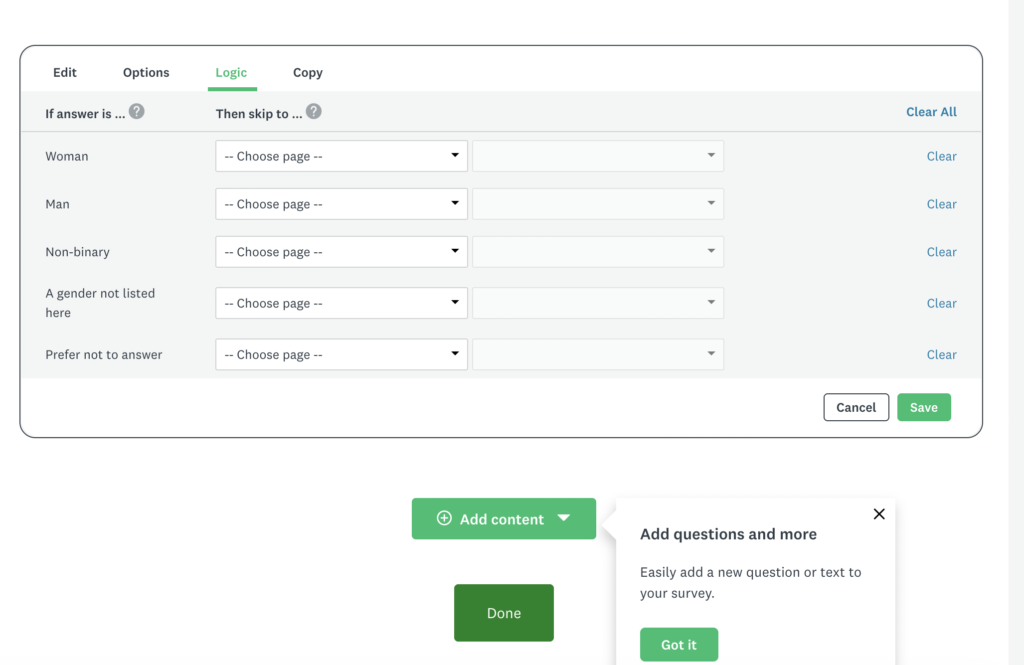
Step 11: Use Skip Logic
Skip logic lets respondents see different questions based on their previous answers.
For example:
Have you contacted customer support?
- Yes
- No
If someone selects Yes, show questions about their support experience.
If they select No, skip those questions.
This prevents respondents from seeing questions that do not apply to them.
It also makes your questionnaire feel shorter and more relevant.
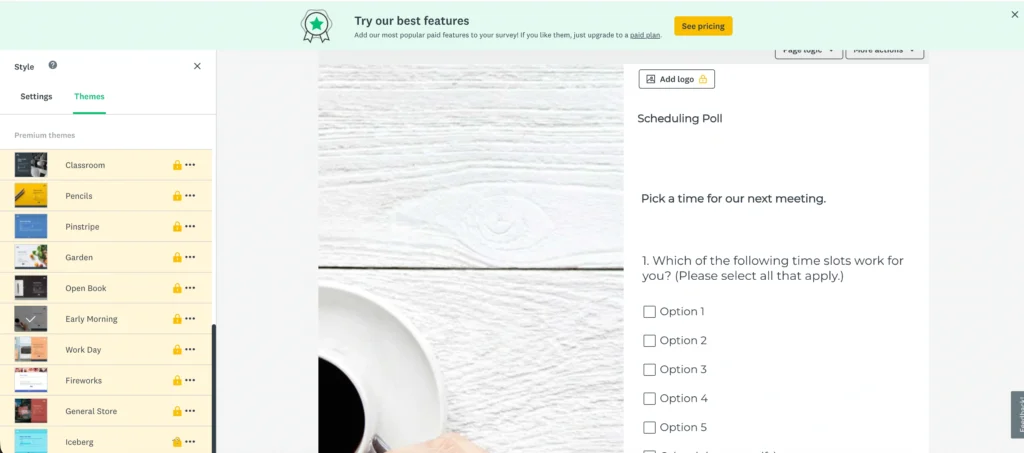
Step 12: Customize Your Questionnaire
Once your questions are ready, customize the appearance.
Depending on your SurveyMonkey plan, you may be able to change:
- Fonts
- Colors
- Background
- Themes
- Logo
- Branding
Keep the design clean.
Your questions should remain the main focus.
If you are conducting a business questionnaire, adding your company logo can also help respondents recognize the survey.
Step 13: Add a Thank-You Message
Create a short message that appears after respondents submit their answers.
For example:
Thank you for completing our questionnaire. Your feedback will help us improve our products and customer experience.
This confirms that their response was successfully submitted.
Step 14: Preview and Test the Questionnaire
Always test your questionnaire before sending it to respondents.
Check:
- Question wording
- Spelling
- Answer choices
- Required questions
- Skip logic
- Page order
- Rating scales
- Thank-you message
Complete the questionnaire yourself several times using different answers.
Test It on Mobile
Also preview your questionnaire on a smartphone.
Pay special attention to:
- Matrix questions
- Long answer choices
- Rating scales
- Images
- Long pages
For important research, ask a few other people to complete the questionnaire before the full launch.
They may notice confusing questions that you missed.
Step 15: Choose How to Collect Responses
Once the questionnaire is ready, choose how you want to distribute it.
| Method | Best For |
|---|---|
| Web link | General sharing |
| Existing contact lists | |
| Social media | Large audiences |
| Website | Visitor feedback |
| QR code | Offline audiences |
Web Link
Create a link and share it through email, messaging apps, websites, or newsletters.
Email works well when you already know who should complete the questionnaire.
Keep the invitation short and explain why their feedback matters.
Social Media
You can share questionnaires through social platforms when you want broader participation.
However, public links provide less control over who responds.
Website
Website questionnaires work well for collecting quick visitor feedback.
For example:
Did you find what you were looking for today?
Keep website questionnaires short.
QR Code
QR codes are useful for connecting offline users with your online questionnaire.
You can add them to:
- Posters
- Receipts
- Packaging
- Flyers
- Event materials
- Restaurant tables
Always test the QR code before printing it.
Step 16: Analyze the Results
After collecting enough responses, open SurveyMonkey’s analysis section.
Start by reviewing each question.
Look for:
- Most common answers
- Low ratings
- High ratings
- Unexpected responses
- Frequently skipped questions
- Repeated complaints
- Common suggestions
Use Filters
Filters can reveal differences between groups.
For example:
| Customer Type | Satisfaction |
|---|---|
| New customers | 9.0/10 |
| 6–12 month customers | 7.7/10 |
| 2+ year customers | 6.5/10 |
The overall satisfaction score might look good, but filtering shows that long-term customers are less satisfied.
That gives you something specific to investigate.
Review Written Feedback
Read open-ended answers and group them into themes such as:
- Pricing
- Product quality
- Customer support
- Delivery
- Website experience
- Missing features
Focus on repeated patterns rather than individual comments.
Step 17: Export Your Results
Export options depend on your SurveyMonkey plan.
Where available, you may be able to export your results to formats such as PDF or spreadsheet-compatible files.
Use PDF when you need a simple report for management or clients.
Use Excel or another spreadsheet format when you want to sort responses, perform calculations, compare groups, or create custom reports.
Best Practices for Creating a SurveyMonkey Questionnaire
Keep these rules in mind:
- Keep the questionnaire focused.
- Ask only necessary questions.
- Use simple language.
- Keep rating scales consistent.
- Avoid leading questions.
- Avoid asking two things in one question.
- Use open-ended questions carefully.
- Add “Other” and “Not applicable” when necessary.
- Use skip logic for irrelevant questions.
- Make the questionnaire mobile-friendly.
- Test everything before publishing.
Most importantly, keep it short.
If 10 questions can give you the information you need, do not ask 25.
Common Mistakes to Avoid
Asking Unnecessary Questions
Every question should have a purpose.
Making Every Question Required
Too many mandatory questions can cause respondents to leave.
Using Too Many Open-Ended Questions
Typing requires more effort and can reduce completion rates.
Creating Huge Matrix Questions
Large matrices are particularly difficult on smartphones.
Asking Leading Questions
Do not influence respondents toward a particular answer.
Ignoring Skip Logic
Do not make respondents answer questions that do not apply to them.
Forgetting to Test
A small mistake in logic or answer choices can affect your results.
FAQs
How do I create a questionnaire in SurveyMonkey?
Create a new survey, choose a template or start from scratch, add your questions, organize the questionnaire, configure logic, preview it, and then distribute it using a collector.
Can I create a SurveyMonkey questionnaire for free?
SurveyMonkey provides a free account option, but limits apply. Certain advanced features, logic, exports, customization options, and response limits may require a paid plan.
How many questions should I include?
There is no fixed number. Include only the questions needed to achieve your objective.
Can I make questions mandatory?
Yes, supported questions can be required. However, avoid making every question mandatory.
Can respondents answer on mobile?
Yes. Still, preview your questionnaire on mobile before publishing, particularly if you use matrix questions or long answer options.
Can I download SurveyMonkey results?
Export options depend on your plan. Available formats may include PDF and spreadsheet-compatible exports.
Final Thoughts
Creating a questionnaire in SurveyMonkey becomes much easier when you start with a clear objective.
Decide what you want to learn and who should answer. Then choose the right question types and arrange them in a logical order.
Use multiple-choice questions for structured answers, rating scales for satisfaction, matrix questions for related items, and open-ended questions when you need detailed feedback.
Use skip logic to remove irrelevant questions and keep the questionnaire as short as possible.
Before publishing, test everything on both desktop and mobile.
Once responses arrive, look beyond the overall percentages. Compare groups, review written comments, and identify repeated patterns.
Most importantly, ask yourself one question before adding anything:
What will I do with the answer?
If you cannot answer that clearly, you probably do not need the question.